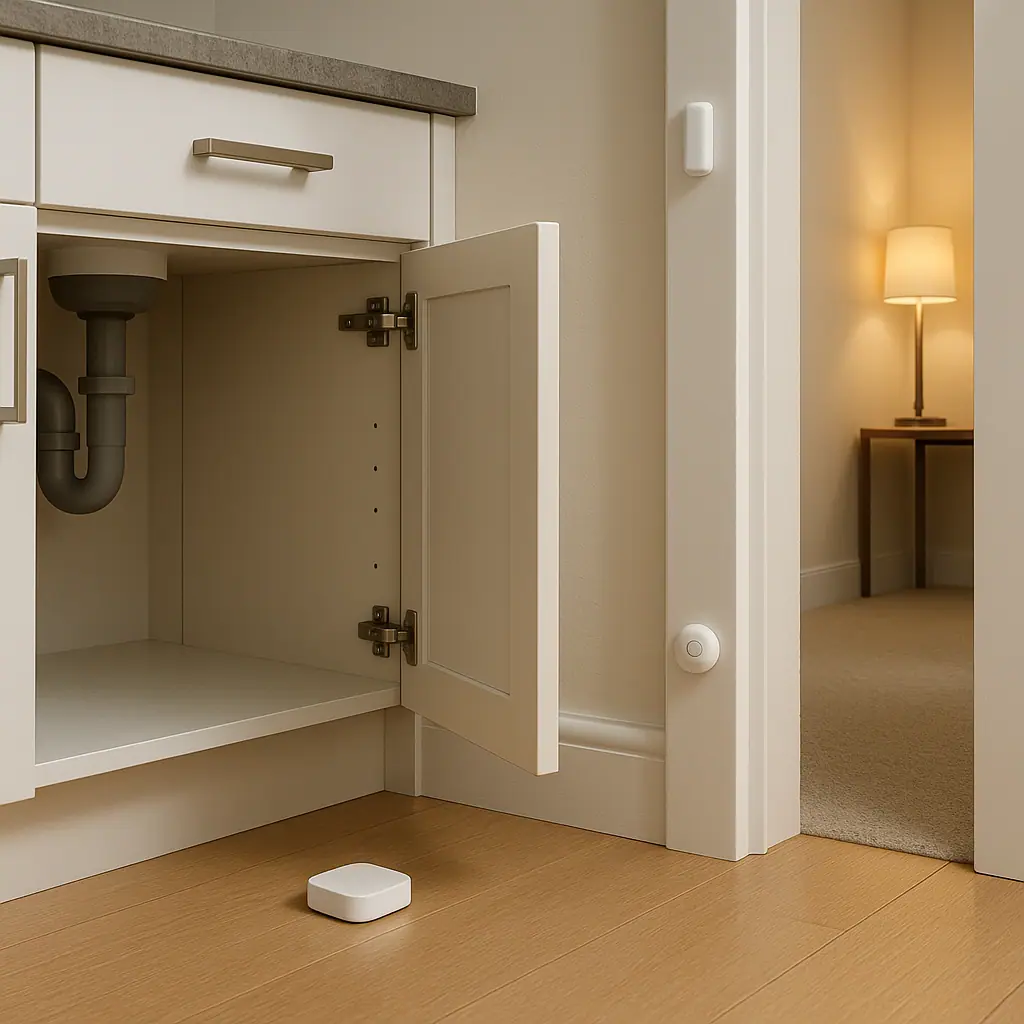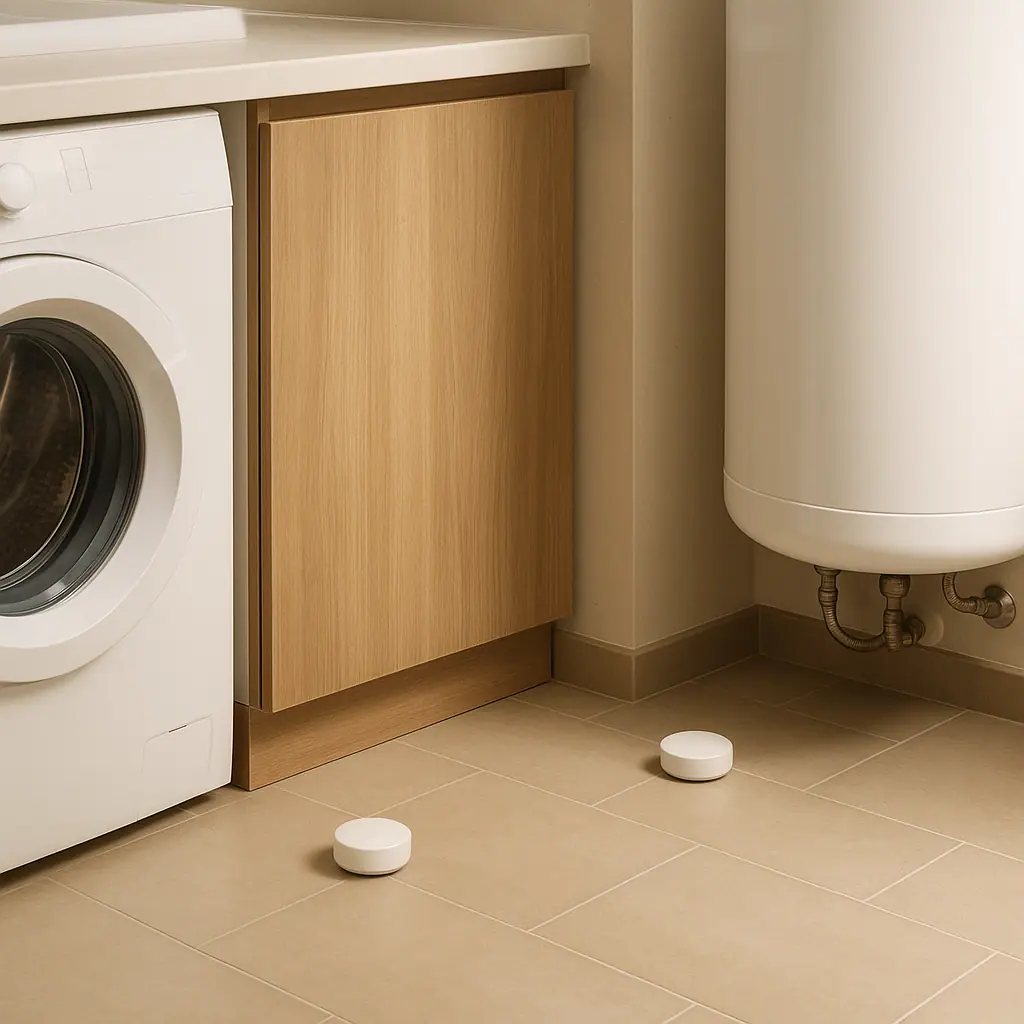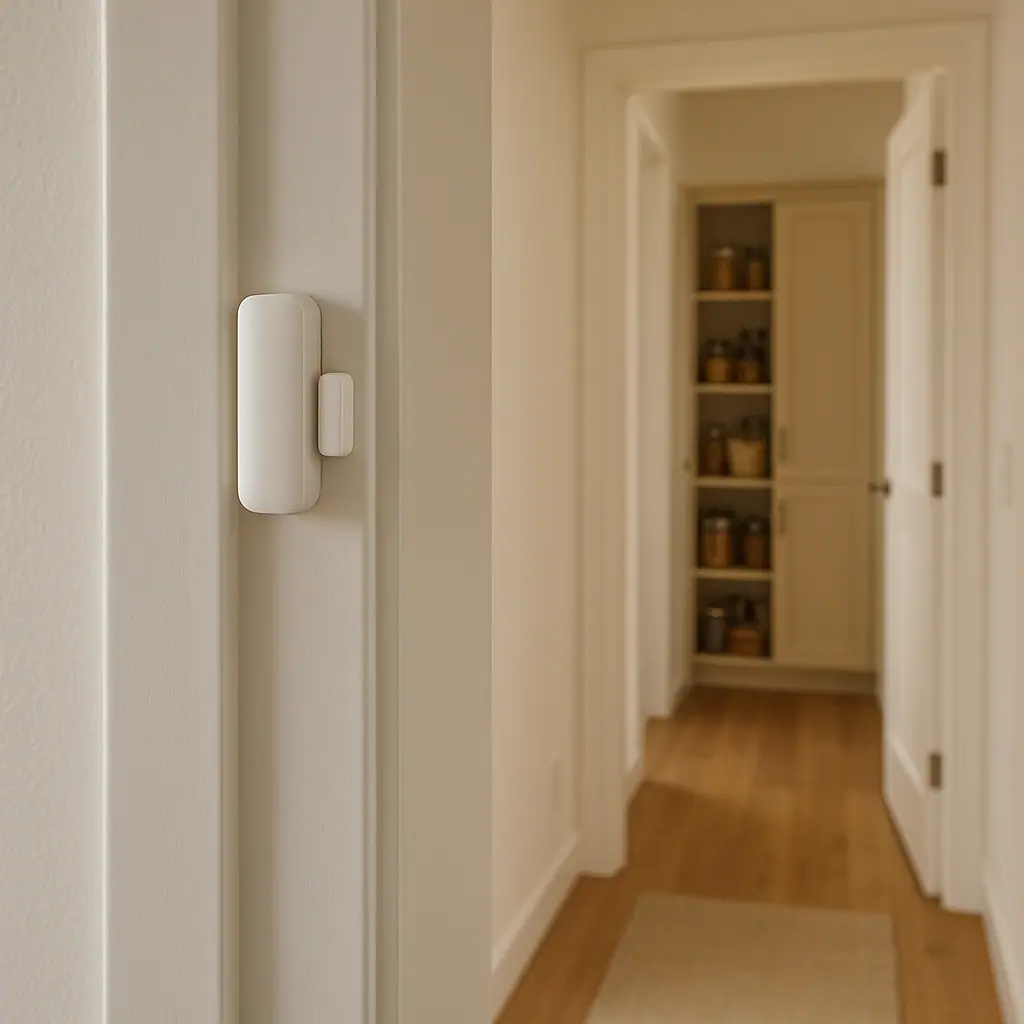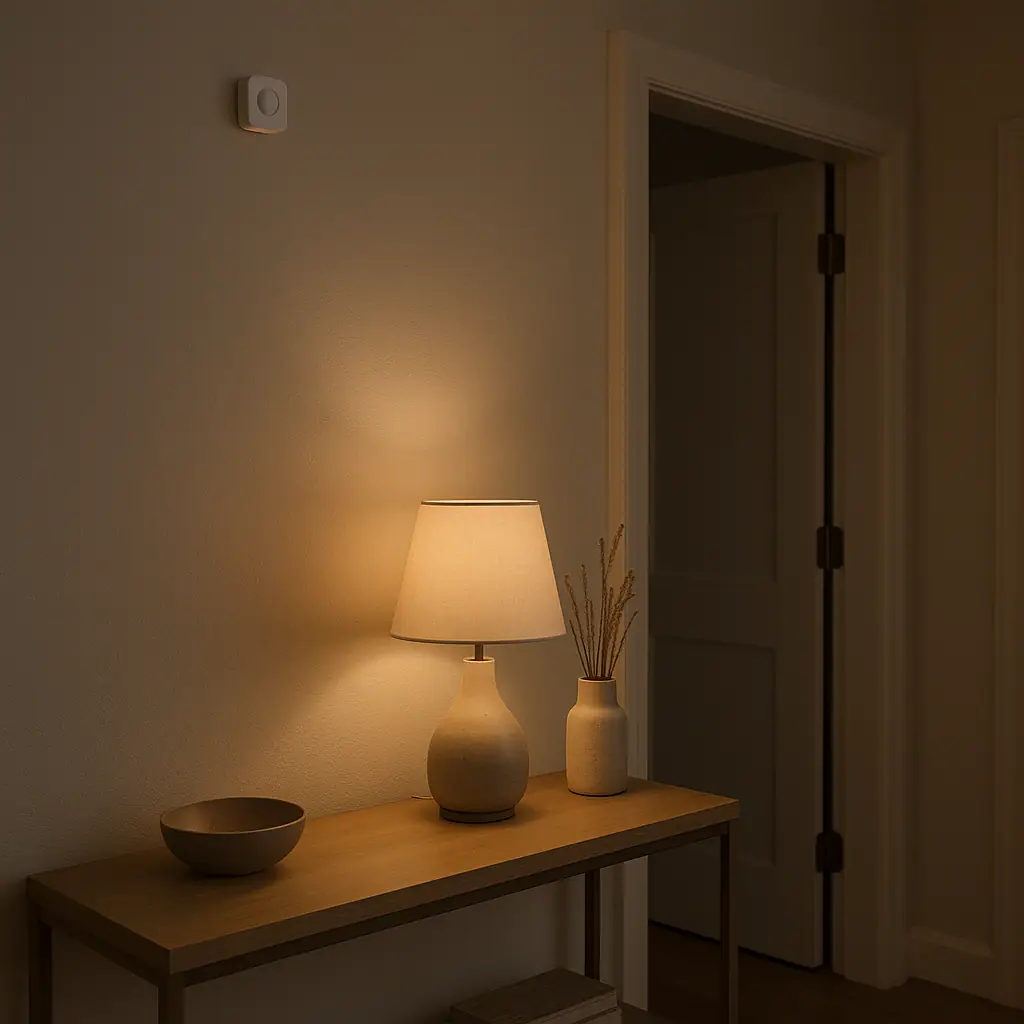
Smart motion sensors are supposed to make a home feel calmer, not make your phone buzz every time someone walks past the hallway. If a motion sensor sends too many notifications, the problem is usually not that the idea was wrong. It is that the sensor is watching too broad an area, alerting at the wrong time, or treating every movement as equally important.
The calmer approach is to give each sensor one job. A hallway light routine, a garage check, a basement alert, and a camera notification are different jobs. They should not all use the same settings, schedule, or urgency. Start with one sensor, one location, and one reason you actually want to be notified.
This guide focuses on simple, reversible settings. WattCalm provides general smart-home and energy-habit information, not electrical, security, HVAC, or financial advice. Always follow product manuals, app instructions, lease rules, and professional guidance for wiring, monitored security, or safety-critical systems.
Why Smart Motion Sensor Notifications Get Noisy
Motion sensors notice change. That change may be a person entering a room, a pet crossing the floor, sunlight shifting through blinds, a curtain moving near a vent, or a camera seeing activity in a busy view. A useful notification setup separates normal motion from motion that deserves your attention.
If you are still mapping the basics, the plain-English guide to smart home sensors for beginners is a good foundation. Motion sensors follow the same rule as other sensors: the notification should point to an action you are willing to take.
Too many alerts usually come from one of four causes: broad placement, loose schedules, duplicate routines, or unclear notification rules. Fix those before replacing devices.
Start With Sensors for a Calmer Home
Before changing app settings, write down the sensor's job in one sentence. That sentence keeps the setup from expanding into a messy pile of alerts.
- Light helper: turn on a lamp or hallway light when someone enters, without sending a phone notification every time.
- Awareness check: notify only when motion happens in a space that is normally quiet, such as a garage, basement, or storage room.
- Camera filter: reduce alerts from a busy window, sidewalk, street, or driveway view by narrowing what counts as important.
- Away-mode alert: notify when nobody is home, while staying quiet during normal household movement.
- Routine trigger: start a simple automation, such as a light turning on, without treating the event like an emergency.
Separate automations from notifications
A motion sensor can trigger a routine without notifying your phone. For example, a hallway sensor can turn on a light after sunset, then stay silent. Samsung explains that SmartThings automations can use conditions such as a motion sensor detecting movement, and actions can be tested before saving: Samsung SmartThings automation guidance.
That source is about one platform, but the principle applies broadly: build the routine first, then decide whether the event is important enough to interrupt you.
Use notifications only for action-worthy motion
If you would ignore the alert most of the time, make it quieter. Turn it into a silent routine, narrow the schedule, or move the sensor. A phone notification should mean you know what to check next.
What to Check First for Smart Motion Sensors
Smart motion sensors vary by product. Some are indoor motion sensors for rooms. Some are cameras with motion detection. Some are doorbell or outdoor camera alerts. Some support sensitivity, cooldown time, activity zones, or presence-based notification rules; others are simpler.
Check these items before changing many settings at once:
- Sensor type: room motion sensor, camera motion detection, doorbell, contact-plus-motion device, or hub-based routine trigger.
- Placement: face the sensor toward the area you care about, not across every busy path in the home.
- Schedule: decide whether alerts should happen all day, only overnight, only when away, or only during a specific routine.
- Pets and heat sources: pets, vents, heaters, sunny windows, and moving curtains can make some sensors less predictable.
- Duplicate routines: check whether two apps, hubs, or assistants are sending alerts for the same motion event.
- Manual limits: read the product instructions for range, mounting height, battery, outdoor rating, and supported notification controls.
For cameras and doorbells, Google Nest documents Activity Zones as a way to choose specific areas for alerts and notes that smaller, more precise zones can improve alert accuracy: Google Nest Activity Zones guidance.
Even if you use a different brand, the practical idea is useful: reduce the area watched for notifications before assuming the sensor is bad.
How to Avoid Too Many Notifications Step by Step
Use this sequence for one sensor at a time. Do not change every motion device in the house during the same sitting, because you will not know which change helped.
- Name the sensor clearly. Use names like hallway motion, garage entry motion, or basement stairs motion instead of Motion 3.
- Decide the notification job. Choose one reason you want your phone to buzz. If there is no action, do not make it a notification.
- Turn off duplicate alerts. Look in the device app, hub app, and voice assistant app. Keep only the alert path you understand.
- Narrow the schedule. Start with a time window, such as overnight, quiet hours, or away mode. Expand only if needed.
- Adjust the watched area. Move the sensor, tilt it away from busy paths, or use zones if the device supports them.
- Add a quiet delay when available. Some apps offer cooldowns or wait conditions, such as notify only if motion stays active or if no one is home.
- Test for two normal days. Do not judge the setup from one unusual afternoon. Watch when alerts happen and why.
- Remove one annoyance at a time. If pets cause alerts, change placement first. If schedules cause alerts, fix the schedule before buying new hardware.
Use Zones, Schedules, and Presence Carefully
Many notification problems are really filtering problems. The sensor sees motion, but the app needs better rules about which motion matters.
Google's Nest camera troubleshooting guide describes using Activity Zones to reduce unwanted notifications from busy areas and turning off notifications for a specific zone while keeping alerts for other areas: Google Nest alert troubleshooting guidance.
For a beginner, this is the model to copy: keep the important area active and make the noisy area quiet. Do not use camera zones or app filters as a substitute for privacy, consent, or local rules about cameras.
Good places to quiet
Quiet the area that creates harmless activity. That might be a sidewalk in a camera view, a pet route across a living room, a hallway during family hours, or a window with moving shadows.
Good times to notify
Notify during the times when motion is unexpected. A basement stairs alert may matter after bedtime. A garage alert may matter when everyone is away. A kitchen motion alert probably does not need to notify anyone during dinner.
Pros and Cons of Motion Notification Routines
Better awareness in quiet spaces
A well-filtered motion alert can help you notice activity in a garage, basement, entry, or storage room without checking constantly.
More useful lighting routines
Motion can turn on lights automatically while phone notifications stay off, which makes the home feel helpful instead of noisy.
Reversible settings
Most schedules, zones, and notification rules can be adjusted later after you see how the routine behaves in real life.
False alerts can build distrust
If every movement triggers a buzz, people start ignoring the sensor even when an alert might matter.
Settings vary by platform
Zones, sensitivity, cooldowns, and presence rules are not identical across brands, so exact steps must come from the product app or manual.
Common Sensor Mistakes to Avoid
The goal is not to silence every sensor forever. The goal is to make notifications rare enough that you still trust them.
- Putting the sensor across a busy path: aim it at the doorway, corner, or zone that matters instead of the whole room.
- Alerting for light routines: a sensor that turns on a lamp does not always need to notify your phone.
- Ignoring pets: pet paths, jumping areas, litter boxes, and food bowls can create repeat motion.
- Forgetting away mode: alerts that are useful when nobody is home may be annoying when everyone is home.
- Keeping duplicate app alerts: one motion event can become two or three notifications if multiple apps watch it.
- Changing too much at once: move the sensor, change the schedule, or edit the zone one at a time.
Electrical safety still matters when motion sensors control plug-in lamps or other devices. ESFI provides general home electrical safety guidance at Electrical Safety Foundation International home safety guidance.
For this routine, the conservative takeaway is simple: do not use motion automations to power devices that should not be automated, and never bypass product manuals, outlet ratings, or professional advice.
A Simple Checklist
Use this checklist before calling the notification setup finished.
- One job is written down: you know why this sensor should notify you.
- Sensor name is clear: the notification tells you which space needs attention.
- Schedule is limited: alerts happen only when motion would be unexpected or useful.
- Placement is tested: pets, vents, windows, busy walkways, and moving curtains are considered.
- Duplicate alerts are removed: one app is responsible for the notification.
- Manual is checked: range, mounting, batteries, and supported settings are understood.
- Review date is set: you will adjust the routine after a normal week.
When to Get Extra Help
Get extra help when motion alerts are tied to a monitored security system, electrical work, hardwired lighting, outdoor camera placement, shared building rules, or anything that could affect privacy or safety. A beginner-friendly motion routine should be easy to undo. If it is not easy to undo, slow down and verify the product instructions.
Also ask for help if the sensor keeps reporting motion that you cannot explain after checking placement, batteries, signal, schedules, and duplicate routines. The device may be mounted poorly, outside its intended environment, or connected through a platform setting you have not found yet.
Frequently Asked Questions
What should I check first when a smart motion sensor sends too many notifications?
Check whether the alert has a clear job. Then review placement, schedule, duplicate app alerts, pets, vents, windows, and the product manual before replacing the sensor.
How often should I review motion sensor notifications?
Review after the first week, then any time your household schedule, router, pets, room layout, or app settings change. Seasonal light and heating changes can also affect some setups.
Should every motion sensor send a phone alert?
No. Many motion sensors are better as quiet routine triggers. A hallway light can turn on automatically without buzzing your phone every time someone walks by.
Can I undo motion notification changes later?
Usually, yes. Most app schedules, zones, routines, and push notifications can be edited or deleted. Keep a short note of the original settings so you can troubleshoot without guessing.
Final Thoughts
Smart motion sensors are most useful when notifications are rare, clear, and tied to a real next step. Start with one sensor, name it plainly, limit the schedule, quiet the busy areas, and remove duplicate alerts.
If the routine still feels noisy, do not add more devices yet. Move the sensor, narrow the rule, or turn the notification into a silent automation. A good motion setup should make the home easier to manage, not train everyone to ignore the phone.