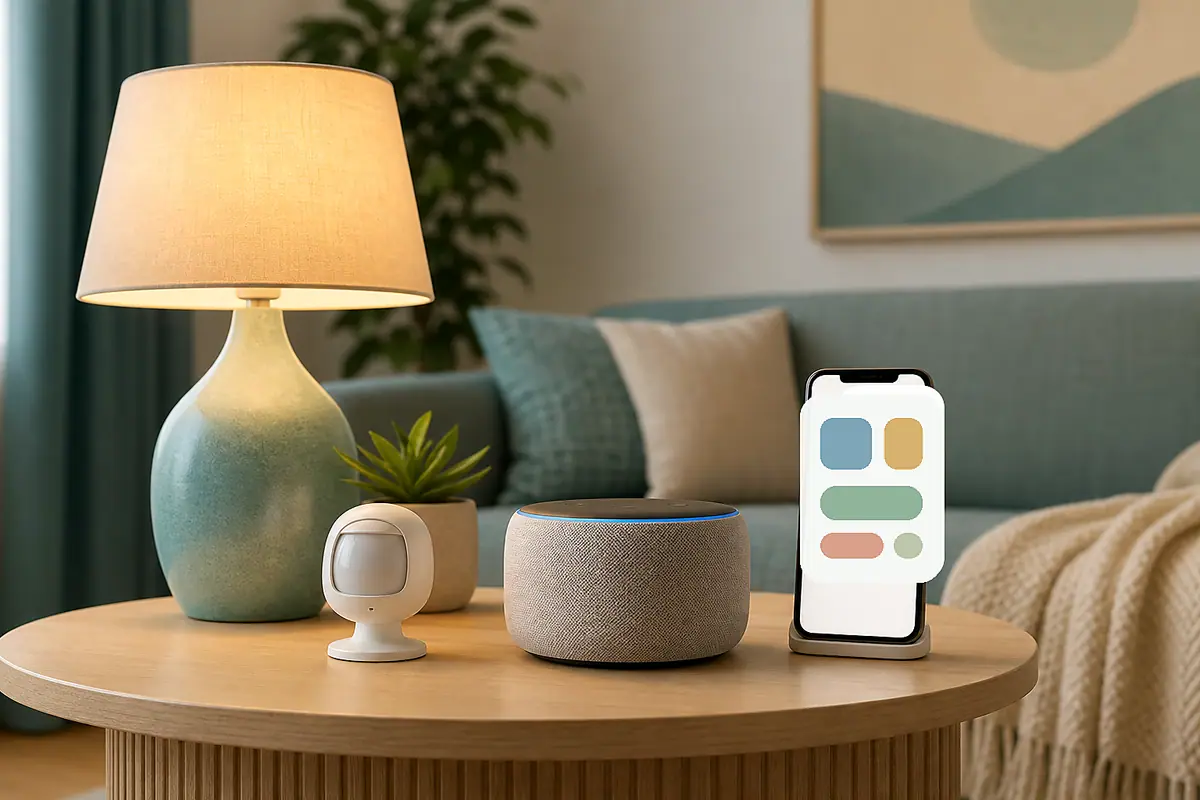
Smart home app overload usually starts with good intentions. You buy one plug, one bulb, or one sensor, then the box asks for a manufacturer app. A voice assistant asks for another app. A hub or platform asks for another login. Before long, turning on a lamp feels less calm than walking across the room.
The goal is not to delete every app or build a perfect system. The goal is to decide which app you actually use day to day, which apps are only for setup and updates, and which routines are simple enough for everyone in the home to understand.
Why Smart Home App Overload Matters
Smart home app overload matters because every extra app adds another place to check names, rooms, permissions, notifications, automations, firmware updates, and shared access. That is manageable with one or two devices. It becomes tiring when every lamp, plug, camera, speaker, and sensor has its own dashboard.
The first problem is confidence. If a routine stops working, a beginner may not know where to look. Was the schedule created in the plug app, the voice assistant, the hub app, or the phone's home app? If the answer is unclear, the setup already needs simplification.
Start With One Daily Control App
Choose the app you want to open for normal use. For many beginners, that is a broad home app, a voice assistant app, or the platform already used by the household. The manufacturer app can still stay installed for setup, updates, troubleshooting, or special settings.
Google's support page for connecting third-party smart home devices says compatible devices can be controlled in the Google Home app, while also noting that some non-Matter third-party devices should be set up in the manufacturer's app first: Google Home third-party device setup guidance. That is a useful model for beginners: setup app first when needed, daily app second when it is reliable.
After choosing the daily app, stop adding routines in random places. If your evening lamp schedule lives in the main home app, do not also create the same schedule in the plug maker's app. Duplicate automations are one of the easiest ways to make a home feel unpredictable.
Keep setup apps, but give them a job
Do not uninstall a manufacturer app just because you do not open it every day. It may be needed for firmware updates, device reset steps, energy reports, or warranty support. Put those apps in a folder named Setup or Smart Home Support so they are available without becoming your daily dashboard.
Write down where routines live
A simple note can prevent future confusion. For each routine, write the device name, the app that controls it, and what it does. Example: Living Room Lamp, Google Home, turns on at sunset. That note is boring in the best way; it makes troubleshooting faster.
Organize Devices Before Adding More Automations
Before building another scene, clean up names and rooms. A device named Plug 3 is easy to ignore and hard to troubleshoot. A device named Reading Lamp is clear. Use names based on purpose, not model number.
Apple's official Home app guidance explains that rooms, zones, and groups help organize accessories so they are easier to track and control: Apple Support on organizing smart-home accessories. Even if you do not use Apple Home, the principle still helps: organize by how people think about the home, not by how the device was added.
How to Reduce Smart Home App Overload Step by Step
Use this cleanup order before buying more devices. It works because it removes confusion first, then leaves room for better routines later.
- List every smart-home app: write down the app name and what it controls.
- Pick one daily app: choose the app people should use for normal control.
- Mark setup-only apps: keep manufacturer apps for updates, resets, and special settings.
- Rename devices: use plain names like Desk Lamp, Hall Sensor, or Coffee Plug.
- Remove duplicate routines: keep each schedule or automation in one place.
- Turn off noisy notifications: keep alerts only when they help you act.
- Test one room: simplify a single room before reorganizing the whole home.
- Wait a week: live with the simpler setup before adding more automations.
Easier daily control
One main app gives the household a clear place to turn devices on, adjust scenes, and check simple routines.
Faster troubleshooting
When routines live in known places, it is easier to find the schedule, rename the device, or pause an automation.
Less notification fatigue
Trimming duplicate alerts makes smart devices feel calmer and keeps important warnings easier to notice.
Some apps still need to stay
Manufacturer apps may still be required for updates, pairing, resets, or product-specific settings.
Features may vary by platform
A device may expose different controls in different apps, so the simplest app may not show every advanced option.
Common Beginner Setup Mistakes to Avoid
The first mistake is adding the same device everywhere on day one. Matter and modern platforms can make multi-app control possible in some setups, but that does not mean every beginner needs every app active. The Connectivity Standards Alliance describes Matter multi-admin as a way for users to connect devices to multiple platforms, apps, or control points: CSA overview of Matter multi-admin. Use that flexibility carefully, not automatically.
The second mistake is hiding advanced automations inside an app no one else opens. If a hallway light schedule is important, it should live somewhere obvious and be named clearly. If it is experimental, label it that way or leave it off until it earns its place.
The third mistake is treating notifications as proof that the home is smart. Useful alerts should point to an action: leak detected, door left open, sensor battery low. Repeated status messages that nobody acts on usually create stress instead of value.
A Simple Smart Home App Checklist
Use this checklist every time the setup starts feeling scattered again. The right answer should be clear without opening five apps.
- Daily app chosen: the household knows which app controls normal routines.
- Setup apps labeled: manufacturer apps are kept for updates and troubleshooting, not daily control.
- Device names cleaned: names describe location and purpose in plain language.
- Rooms checked: devices are assigned to rooms that match real household use.
- Duplicate schedules removed: each routine lives in one app only.
- Notifications trimmed: alerts are kept only when someone will act on them.
- One room tested: the simplified setup works in real life before expanding.
When to Get Extra Help
Get help when account sharing, locks, cameras, security sensors, router settings, or paid cloud features are involved. Those settings can affect privacy, access, and household safety. It is better to slow down than to guess through menus you do not understand.
Frequently Asked Questions
What should I check first if I have smart home app overload?
Start by listing every smart-home app and what it controls. Then choose one daily app and mark the others as setup, update, or troubleshooting apps.
How often should I review my smart-home apps?
A short review every few months is enough for most beginners. Also review after adding a new device, changing Wi-Fi, or sharing control with another person.
Should I delete manufacturer apps?
Usually no. Keep them available for firmware updates, setup help, reset instructions, and product-specific features, even if you do not use them every day.
Can I undo smart-home app changes later?
Often yes. Names, rooms, notifications, and many routines can be adjusted again. For resets, account sharing, or security settings, check the official help page before changing anything important.
Final Thoughts
Smart home app overload is not a personal failure. It is a normal side effect of devices, brands, platforms, and routines growing faster than the household's system for managing them.
Start small: pick one daily control app, label setup-only apps, rename devices clearly, and remove duplicate routines. A calmer smart home is usually not the one with the most automations. It is the one people can use without wondering where the controls went.